Control Your Windows Desktop
From Your Android Phone
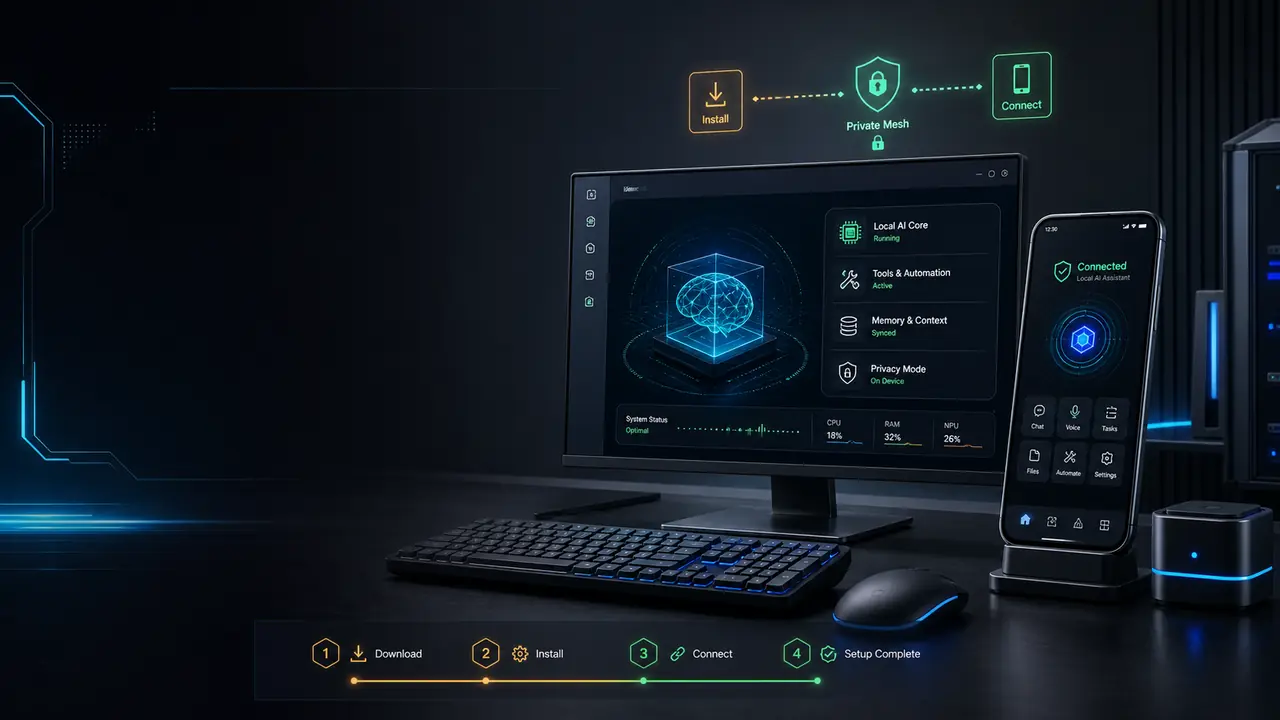
Jarvis for Android is a companion app for controlling your Jarvis Windows desktop assistant from your phone. It's currently in beta and connects to your desktop over Tailscale.
- Android companion app
- Connects to your Windows desktop
- Works with Tailscale
- Currently in beta
A companion app, not a second brain.
Jarvis AI Assistant lives on Windows: that is where the tools, the memory and the model routing run. The Android app does not duplicate any of that — it is a companion that lets you talk to the same assistant, running on your same desktop, from your phone. Ask it to check your calendar, triage email, or run a routine, and the request is carried out by the desktop app exactly as if you had typed it there yourself.
That is a deliberate design choice, not a limitation waiting to be fixed. Keeping the tools and data on one machine — the one you already trust with STRICT and GUARDED privacy modes — means the phone never becomes a second place your files, credentials or conversation history have to live. The security page covers what those privacy modes actually do; they apply the same way whether you are typing on the desktop or asking from your phone.
A direct line to your desktop, not through our servers.
The Android app reaches your desktop over a private Tailscale mesh — a peer-to-peer network that connects your phone straight to your PC. No ports are opened on your router, and your conversations and tool calls do not pass through a server we run. Install Tailscale on both devices, sign in with the same account on each, and Jarvis links up automatically once both are online.
This also means the connection needs both devices reachable on the mesh: your desktop app running, and your phone signed in to the same Tailscale network — on the same Wi-Fi or over the internet, it works either way once Tailscale is set up. If your PC is asleep or the desktop app is closed, the phone has nothing to reach.
Four steps to connect your phone.
Install Jarvis on Windows
The desktop app is where the assistant actually runs — get it from the Microsoft Store first if you have not already.
Join the Android beta
Play access is a closed test: tap “Become a tester” on the Play page, then install Jarvis from Google Play.
Install Tailscale on both
Add Tailscale to your phone and your PC, and sign in to both with the same account.
Sign in and talk to it
Open the Android app, sign in with your Jarvis account, and start talking — the same tools, memory and privacy mode as your desktop.
Honestly: it is a beta, and the Windows app is the main product.
Play access is currently a closed test — tap "Become a tester", then install from Google Play. That means access starts with a Google Play test opt-in, not a public store listing — there is nothing to hide there, just an accurate description of where the app is today. Expect rough edges and changing details while it is in beta.
If you are deciding where to start, start on Windows. The desktop app is the full assistant — every tool, every privacy mode, every integration — and the Android app is at its best once that is already set up and you want to reach it from your phone. See the full offer on the pricing page.