Available Now

Download Jarvis AI Assistant

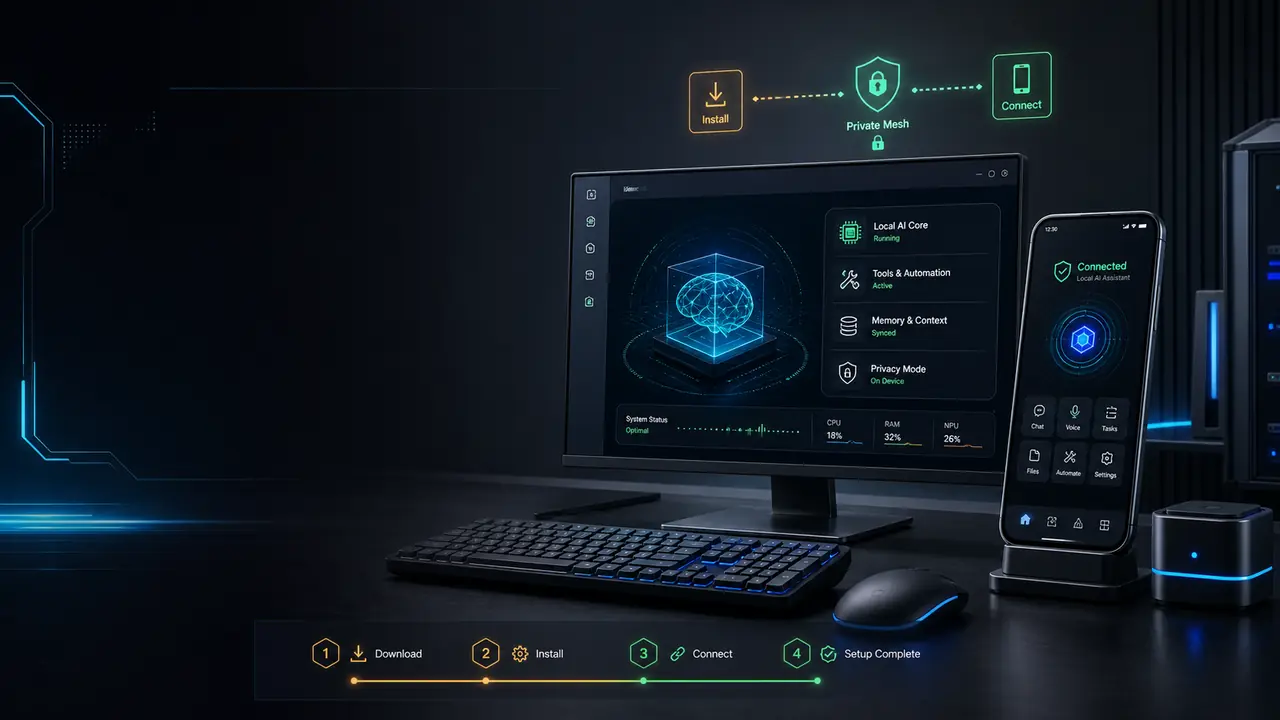
Run the full assistant on Windows, and take it with you on Android. Same brain, same memory, same tools — everywhere you work.

Windows

Windows 10 & 11
Scan to install

The full native desktop experience — MSIX-packaged Electron app with voice, tray supervision, and the Command Center daily briefing.

  • Windows 10 (2004+) or Windows 11
  • 64-bit · 4 GB RAM
  • One-click install · auto-updates
Get from Microsoft Store

Verified & sandboxed via the Microsoft Store

Android

Android 8.0+
Scan for APK

Talk to Jarvis and drive your desktop from your phone. Live now via Google Play closed testing or a direct signed APK.

  • Android 8.0 (Oreo) or newer
  • Tailscale on phone + desktop to connect
  • Sign in with your Jarvis account
Join on Google PlayDownload APK (Google Drive)

Play is a closed test — request access, or sideload the signed APK

🔐

Connect the app to your machine

The Android app reaches your desktop over a private Tailscale mesh — no ports exposed, no data through our servers. Install Tailscale on both devices, sign in with the same account, and Jarvis links up automatically.

Get Tailscale ↗

Also available as a rich CLI, web dashboard, and voice interface — see the setup guide.

AFTER YOU INSTALL — ~5 MIN SETUP

Installed it? Here's the rest.

A beginner-friendly walkthrough of the first launch, signing in, and giving Jarvis a brain. No developer setup — the Store app configures itself.

01First launch

Open Jarvis and let it boot

Launch Jarvis from the Start menu. A secure-boot screen appears while the local AI core and dashboard warm up in the background.

WHAT HAPPENS ON FIRST LAUNCH
1

Secure boot

Jarvis verifies its local runtime — you see a progress screen.

2

Core starts

The AI engine and dashboard start up in the background.

3

Systems online

Progress reaches 100% and the command center loads.

4

Ready

The main window opens to sign-in. ~10–15s the first time.

First launch is the slow one

The first start takes about 10–15 seconds while dependencies are verified and cached. Every launch after that is much faster because the check is skipped. A small Jarvis icon also appears in your system tray — the app keeps running there so it's always a keystroke away.

02Sign in

Create your account or sign in

On first run Jarvis opens a sign-in page. Creating an account secures your assistant — your data and conversations stay on your own machine.

New here — create an account

1.Click Sign up on the welcome screen.
2.Enter your name, email, and a password.
3.You go straight into a short onboarding wizard.
4.Try a quick action before adding any keys — value first.

What onboarding covers

👋Welcome — try Jarvis immediately
📖How to use — commands, voice, dashboard
🔑AI keys — optional, add now or later
Done — you land in the dashboard

Your account is local-first

Jarvis is a single-user product — one private instance on your machine, not a shared cloud service. Signing in protects access to your assistant; it does not upload your conversations anywhere. Your history lives in a local database on your PC.

03Connect a model

Give Jarvis a brain

Jarvis needs one AI model to think with. Pick a free local model with Ollama, sign in to Ollama Cloud, or paste a free cloud key — the setup dialog tests the connection before saving.

🦙

Recommended · Install Ollama

Free · fully local · no cloud, private

BEST FOR PRIVACY

Ollama runs open models directly on your PC, so Jarvis can work completely offline with zero data leaving your machine. It is the recommended way to start — free, private, and no provider account needed.

# 1. Download and install Ollama for Windows
https://ollama.com/download
# 2. Ollama runs in the background automatically after install
# 3. Pull a model (one-time download) in a terminal
$ollama pull llama3
# 4. Prefer bigger cloud-hosted models? Sign in to Ollama Cloud instead
$ollama signin

Back in Jarvis, open the model setup dialog and choose Use local Ollama. Jarvis detects the running Ollama service and the models you have pulled, then confirms the connection. That's it — you now have a private AI running locally.

Fastest free start · Groq

Groq has a generous free tier and is extremely fast. Great if you don't want to download a model.

# Get a free key, then paste it into Jarvis
https://console.groq.com/keys

In Jarvis: Connect Groq free key — it validates the key live before saving.

Many models · OpenRouter

OpenRouter gives you 200+ models behind one key, including free options to start with.

# Get a free key, then paste it into Jarvis
https://openrouter.ai/keys

In Jarvis: Connect OpenRouter free key — guided, tested before it's saved.

Not sure? Let Jarvis decide

In the setup dialog, choose Use Jarvis recommended model and it auto-detects the best available option for your machine. You can add premium keys (Claude, GPT, Gemini) any time later from Settings → AI ModelJarvis routes each query to whichever model fits best.

04Start using it

Give Jarvis your first command

You're set up. Jarvis is now one keystroke away, everywhere on your desktop.

Open Jarvis

Use the desktop app, dashboard, CLI, or voice mode. Type or speak your request.

Go hands-free

Enable voice in Settings → Voice, then just talk. Fast, sub-second spoken replies.

Use the dashboard

Chat, Command Center, daily briefing, notes and settings — all built in.

Try these first commands

"what can you do?"
"summarize my day"
"what files are in my Downloads folder?"
"draft a reply to my last email"

Talk to Jarvis in plain language — no commands to memorize. Want the full command reference and power workflows? Read the Usage Guide.

05Troubleshooting

If something doesn't look right

The common first-run questions, and the quick fix for each.

The boot screen is taking a while+

The very first launch verifies and caches dependencies, which can take 10–15 seconds. If it stays on the boot screen much longer, close Jarvis from the tray and reopen it — the cached checks make the second launch fast.

It says no AI model is configured+

Jarvis needs one model to think with. Open the model setup dialog and either install Ollama (free, local) or paste a free Groq/OpenRouter key. See step 3 above.

Voice input does nothing+

Enable the microphone for Jarvis in Windows Settings → Privacy → Microphone, then turn on voice in Jarvis Settings → Voice. The mic permission is required before hands-free mode works.

I want everything to stay offline+

Install Ollama, pick it as your model, and set privacy to STRICT. In STRICT mode Jarvis never sends anything to a cloud model — it runs 100% on your machine.

How do I update Jarvis?+

The Microsoft Store updates Jarvis automatically in the background. You are always on the latest version with nothing to do.

06FAQ

Install & setup FAQ

Quick answers to what people ask before installing Jarvis.

Do I need Docker, Node.js, or Python to install Jarvis AI Assistant?+

No. The Microsoft Store version is fully self-contained — it bundles its own runtime and runs the dashboard on Electron's embedded Node. A clean Windows 11 machine just works with no manual setup. Docker is optional and only used if you want the Postgres/Redis containers.

Is Jarvis AI Assistant free to install?+

Yes. Jarvis AI Assistant is currently free with no usage limits and no purchase required. You bring your own model — run a free local Ollama model, or paste a free Groq or OpenRouter API key. Jarvis AI Assistant adds no markup.

Why does the first launch take a few seconds?+

On first launch Jarvis AI Assistant verifies its local runtime and starts the AI core plus the dashboard in the background, which takes roughly 10 to 15 seconds. The secure-boot screen shows progress. Subsequent launches are much faster because the checks are cached.

Do I have to connect a cloud model?+

No. Install Ollama and Jarvis AI Assistant can run 100% locally with no cloud, no data sharing, and no account with a model provider. Cloud models (Groq, OpenRouter, Claude, GPT, Gemini) are optional and only used if you add a key.

Which model should a beginner pick?+

The fastest free start is a Groq key (free tier, very fast) or a local Ollama model if you prefer full privacy. Jarvis AI Assistant can also auto-detect and recommend a model for you from the setup dialog.

My data — does it leave my machine?+

Only if you choose a cloud model, and even then GUARDED mode redacts secrets before anything is sent. In STRICT mode with Ollama, nothing ever leaves your device. Every external call is written to an audit log you can inspect.