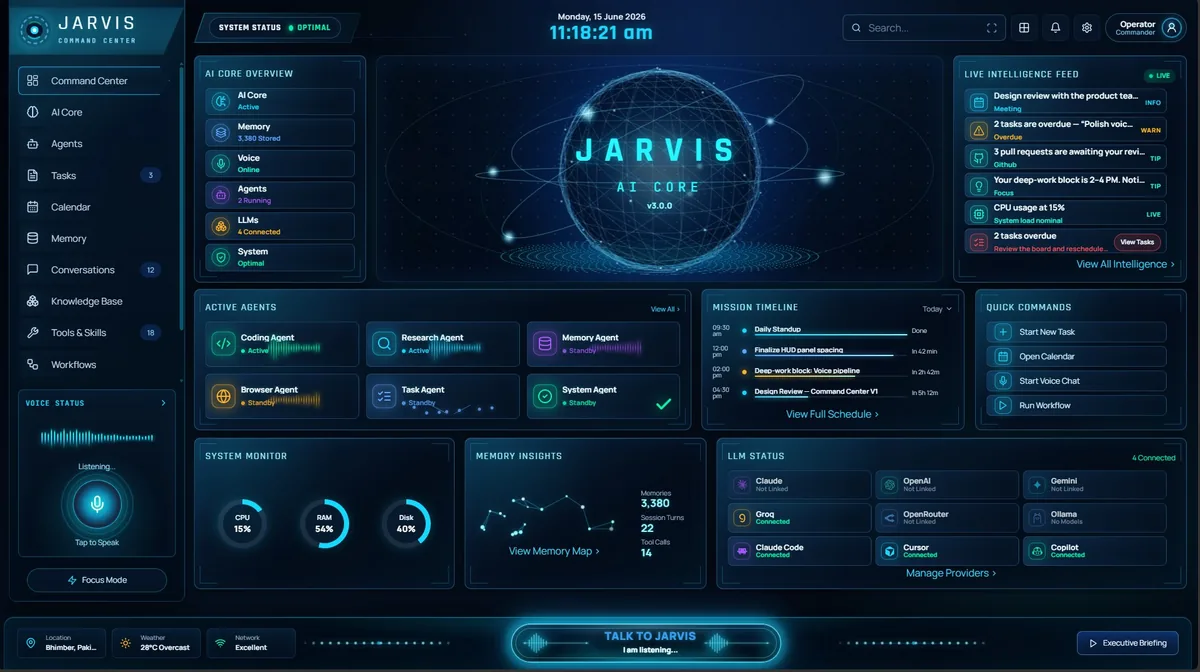
How to use the
Jarvis dashboard
Every part of the Jarvis dashboard explained in plain language: what each panel shows, what each button does, and how to get your first task done.
- 1Open AI Core and connect an AI model: paste a free Groq key, or install the built-in llama.cpp engine to stay fully local.
- 2Optional: open AI Voice and pick the voice Jarvis speaks and listens with.
- 3Optional: open Settings → Integrations to connect your calendar and email.
- 4Go back to Command Center and click Talk to Jarvis, or switch the bottom bar to Text and type a request.
- 5When Jarvis asks before doing something sensitive, review it and approve or decline.
01
The layout at a glance
The dashboard has four areas. Once you know where each one is, everything else is easy to find.
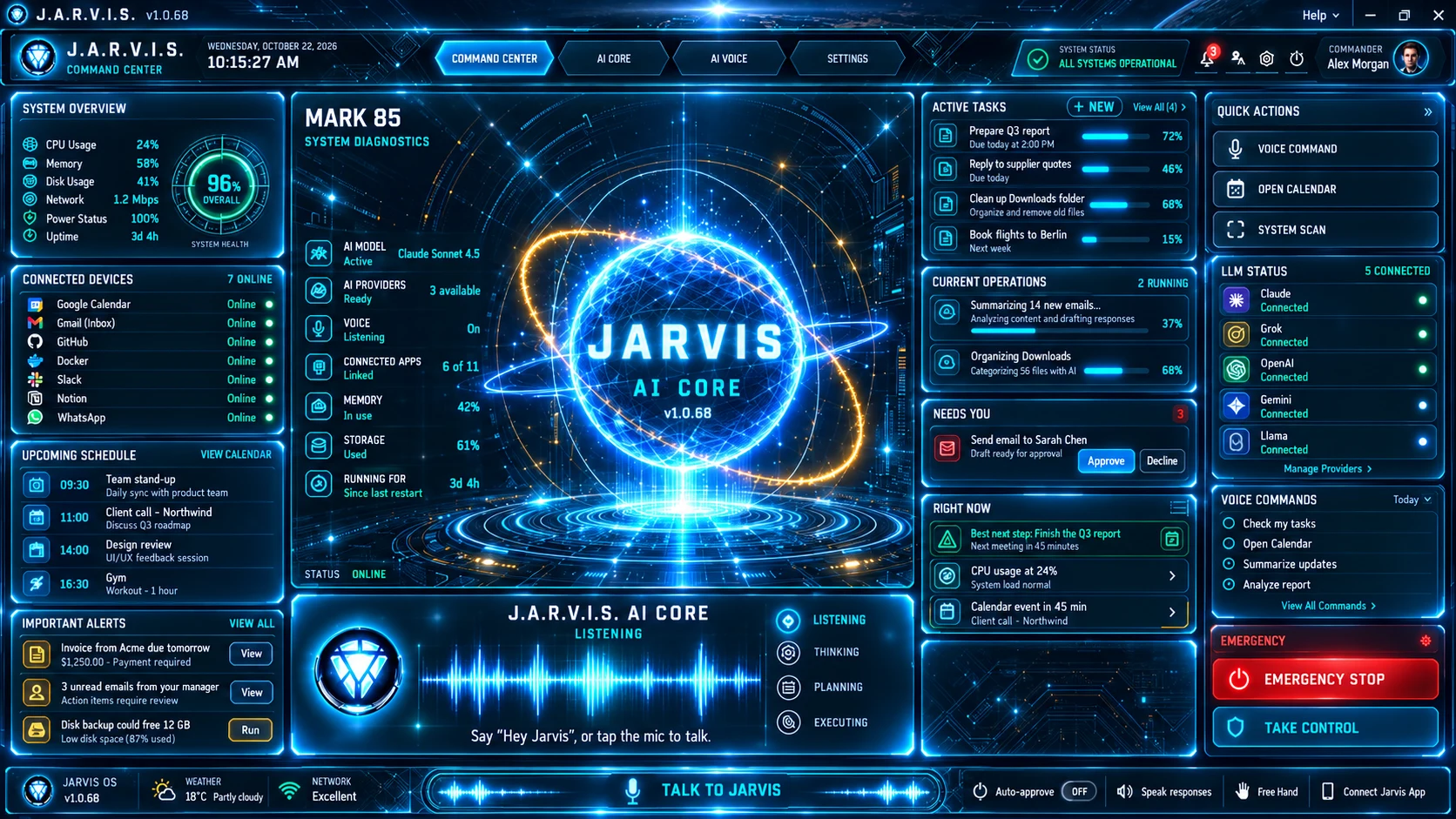
- Top bar
- Switch between Command Center, AI Core, AI Voice and Settings. Search, notifications, help and your profile are on the right.
- Command Center
- The middle of the screen. Live panels for your day, your tasks, approvals and your PC.
- Quick Actions
- The column on the far right. One-click shortcuts, model and voice status, and the emergency controls.
- Bottom bar
- Where you talk or type to Jarvis, plus voice options and auto-approve.
02
Talking and typing to Jarvis
Everything starts in the bottom bar. Speak to Jarvis or type a request, in plain language, and it carries the task through.

- Talk to Jarvis
- The big button in the middle. Click it and speak; click again to end the conversation.
- Voice / Text switch
- Switch to Text to type a command instead, then press Enter to send.
- Speak responses
- Turn on to hear Jarvis read its answers aloud, or off to read them on screen.
- Free Hand
- Say "Hey Jarvis" to start a hands-free conversation without clicking anything.
- Auto-approve
- Skips the confirmation popup for actions. Off by default; Jarvis warns you before turning it on.
- Connect Jarvis App
- Shows how to link the Android app so you can control this PC from your phone.
- Status readout
- Your system, the weather and your network at a glance, on the left.
How to use it
- 1Click Talk to Jarvis and say what you need, for example "What is on my calendar today?"
- 2Or switch to Text, type "Show me the files in my Downloads folder", and press Enter.
- 3Watch the Command Center panels update as Jarvis works.
- 4If Jarvis asks for permission, review the action and approve or decline it.
Tip: Leave Auto-approve off until you are comfortable with what Jarvis does. Approvals are your safety net.
03
Left column: your day and your PC
The left side of the Command Center answers "what is going on?" Every number is a real reading; anything Jarvis cannot measure is hidden, not made up.
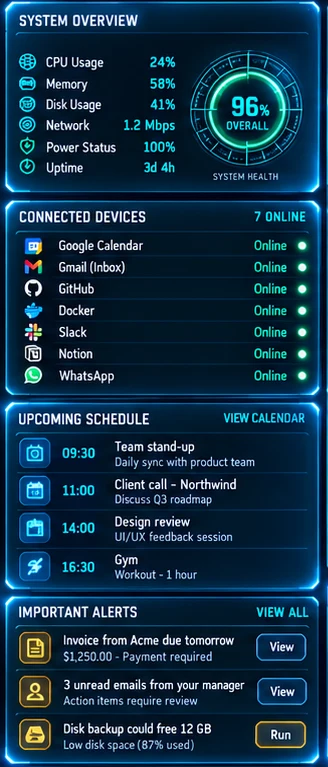
- System Overview
- Live CPU, memory, disk, network and uptime readings from your PC.
- Connected Devices
- Each service you can connect, shown as Online or Not Connected. Connected ones sort to the top.
- Upcoming Schedule
- Today's events from your connected calendar.
- Important Alerts
- Live signals worth your attention, plus prompts to connect anything not yet set up.
How to use it
- 1Glance here when you sit down to see your day and anything that needs attention.
- 2If a service shows Not Connected, connect it from Settings → Integrations; the panel updates on its own.
04
Centre: the AI core
The centre of the Command Center shows Jarvis itself. It reacts as Jarvis listens, thinks and speaks.
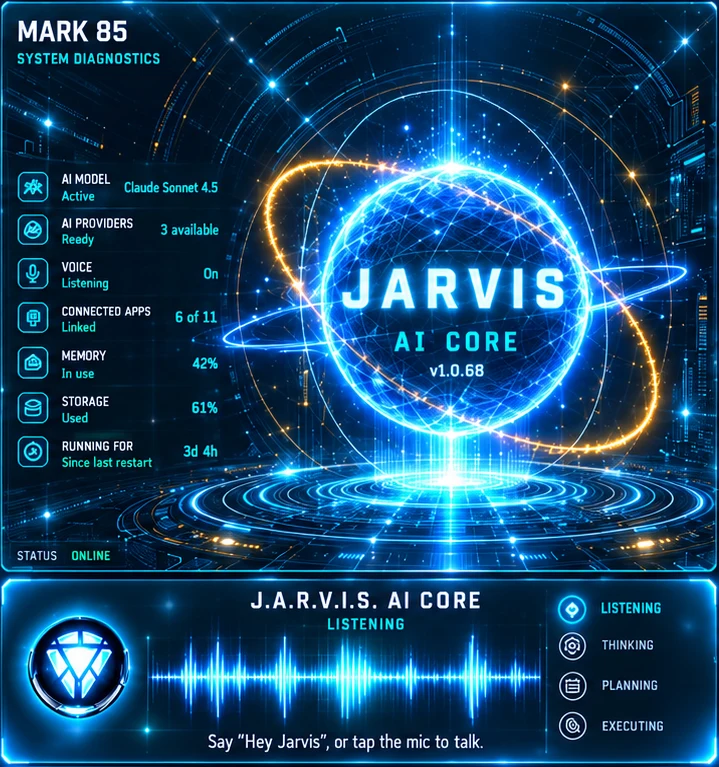
- System intelligence
- AI readiness (model, providers and voice), connections, memory, storage and uptime at a glance.
- AI core and voice wave
- Shows the voice session as it happens: standby, listening, thinking, then speaking. The wave follows your real microphone level.
- Character
- When a character is turned on, pick which one appears here. It is the same choice as Settings → Character.
05
Right column: tasks, approvals and what to do next
The right side of the Command Center answers "what is Jarvis doing, and what does it need from me?"
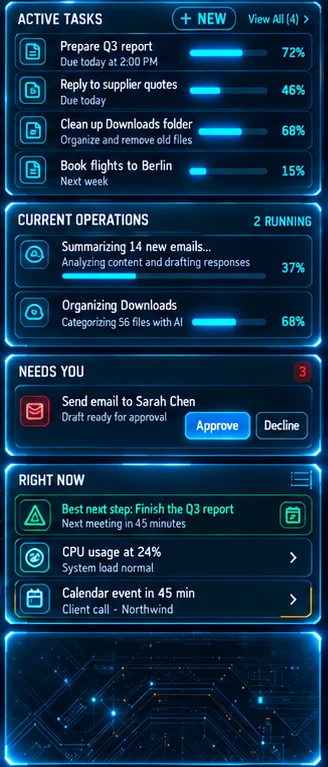
- Active Tasks
- Your tasks, each with a bar showing how close it is to being due. Overdue tasks are flagged.
- Current Operations
- Background jobs Jarvis is running right now. When nothing is running, it suggests things Jarvis can do.
- Needs You
- Anything waiting for your yes before it runs, with Approve and Decline buttons. Nothing sensitive happens without you.
- Right Now
- One suggestion for what to focus on next, with your next commitment and the reasoning behind it.
- Recent Activity
- What Jarvis has done recently, so you can always check its work.
How to use it
- 1When Needs You shows an item, read what Jarvis wants to do, then click Approve or Decline.
- 2Use Right Now when you are not sure what to do next; act on its suggestion in one click.
06
Quick Actions and emergency controls
The far-right column holds one-click shortcuts and the controls that stop Jarvis instantly if you need to.
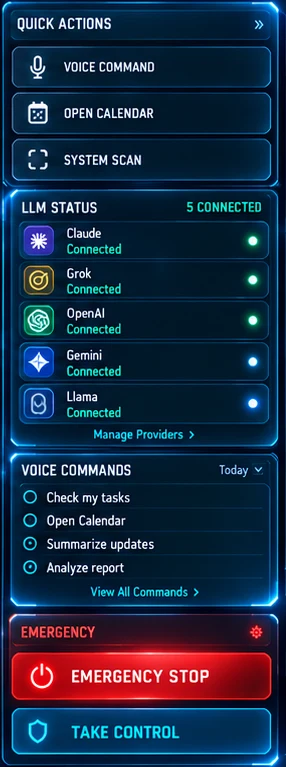
- Shortcuts
- Voice Command, Open Calendar and System Scan, one click each.
- LLM Status
- Which AI providers are connected right now.
- Voice Commands
- Examples of things you can say, such as "Check my tasks" or "Open Calendar".
- Emergency Stop
- Halts Jarvis straight away: tools, voice and scheduled routines stop. Click Resume to carry on.
- Take Control
- Pauses Jarvis so you can take over. Click Give Back Control when you are done.
Tip: Emergency Stop is always one click away. Use it any time something looks wrong.
07
The top bar
Move between screens and reach search, notifications, help and your account.

- Command Center · AI Core · AI Voice · Settings
- The four main screens. The highlighted one is where you are.
- Search
- Find anything in the dashboard. Press Ctrl + K to jump to it from anywhere.
- Notifications
- The bell shows how many updates you have not read yet. Open it to see them.
- Shield menu
- Trust Center (what Jarvis is allowed to do), Outcomes (what it has done, with undo) and Tools & Skills (what it can do).
- Help menu
- Open the guide, take a 60-second tour, replay first-time setup, see keyboard shortcuts, or run diagnostics.
- Your profile
- Your name and picture. Open it for your profile, Report a problem, Share feedback, or Sign out.
Tip: New to Jarvis? Open the Help menu and choose Take a tour for a 60-second walk through the screen.
08
AI Core: choose the model that thinks for Jarvis
Jarvis needs one AI model to think with. Connect a cloud provider with your own key, or run a model fully on your PC.
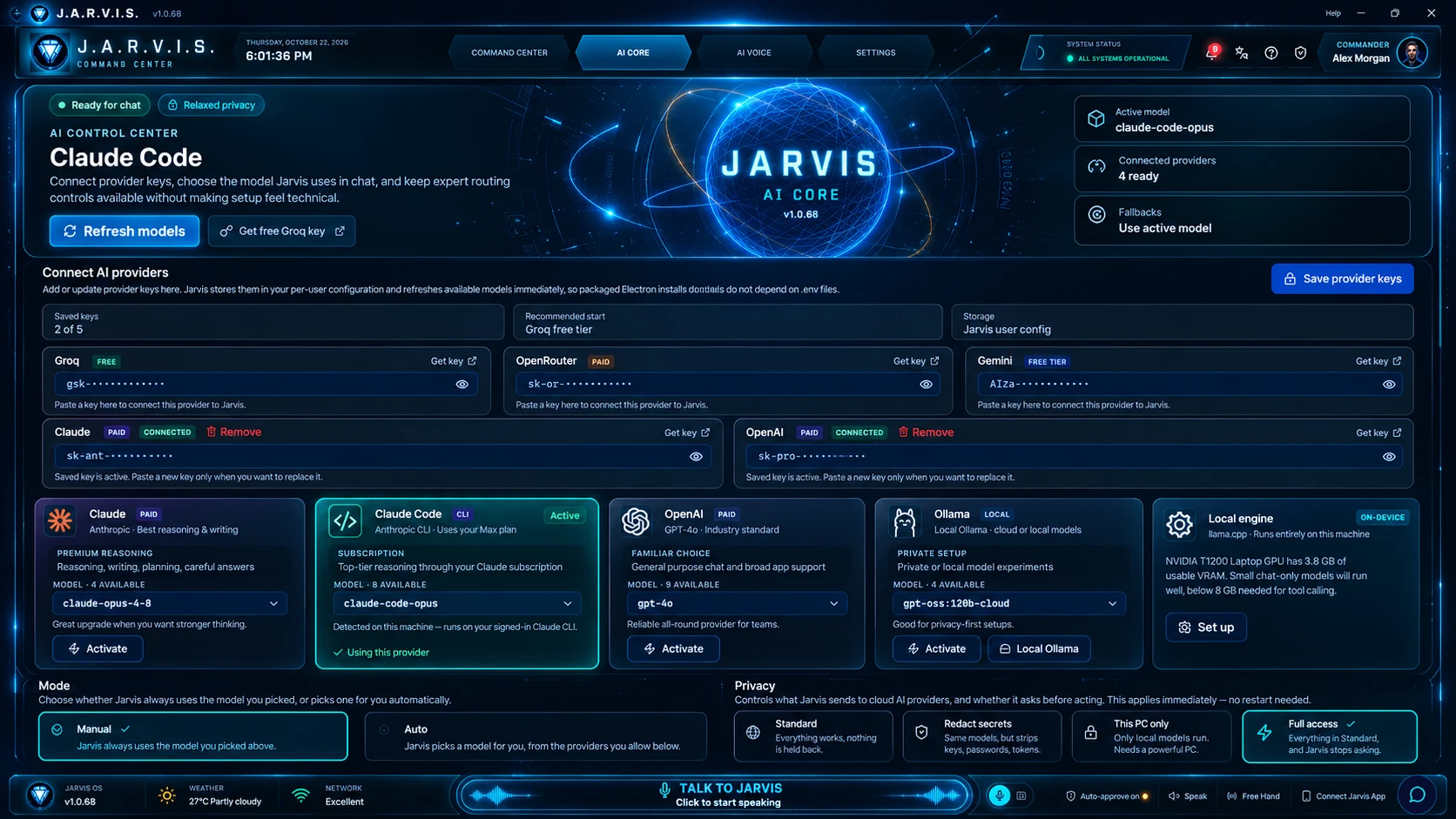
- Provider cards
- Claude, OpenAI, Gemini, Groq, OpenRouter, Ollama, llama.cpp and the Claude Code CLI. Click a card to switch.
- API keys
- Paste a key and Jarvis checks it works before saving it.
- Built-in llama.cpp engine
- One-click install. Jarvis checks your graphics card, memory and disk, then only offers models your PC can run.
- Privacy mode
- Strict keeps every AI call on your PC. Guarded strips secrets before cloud calls. Relaxed is the default.
How to use it
- 1Open AI Core from the top bar.
- 2Beginners: choose Groq, paste a free key, and save. Jarvis tests it first.
- 3For privacy: choose llama.cpp, click Install engine, then download a model it recommends.
- 4Pick a privacy mode. Strict means only local models answer.
09
AI Voice: how Jarvis listens and speaks
Pick the voice Jarvis uses, set up the "Hey Jarvis" wake word, and tune it to your microphone and language.
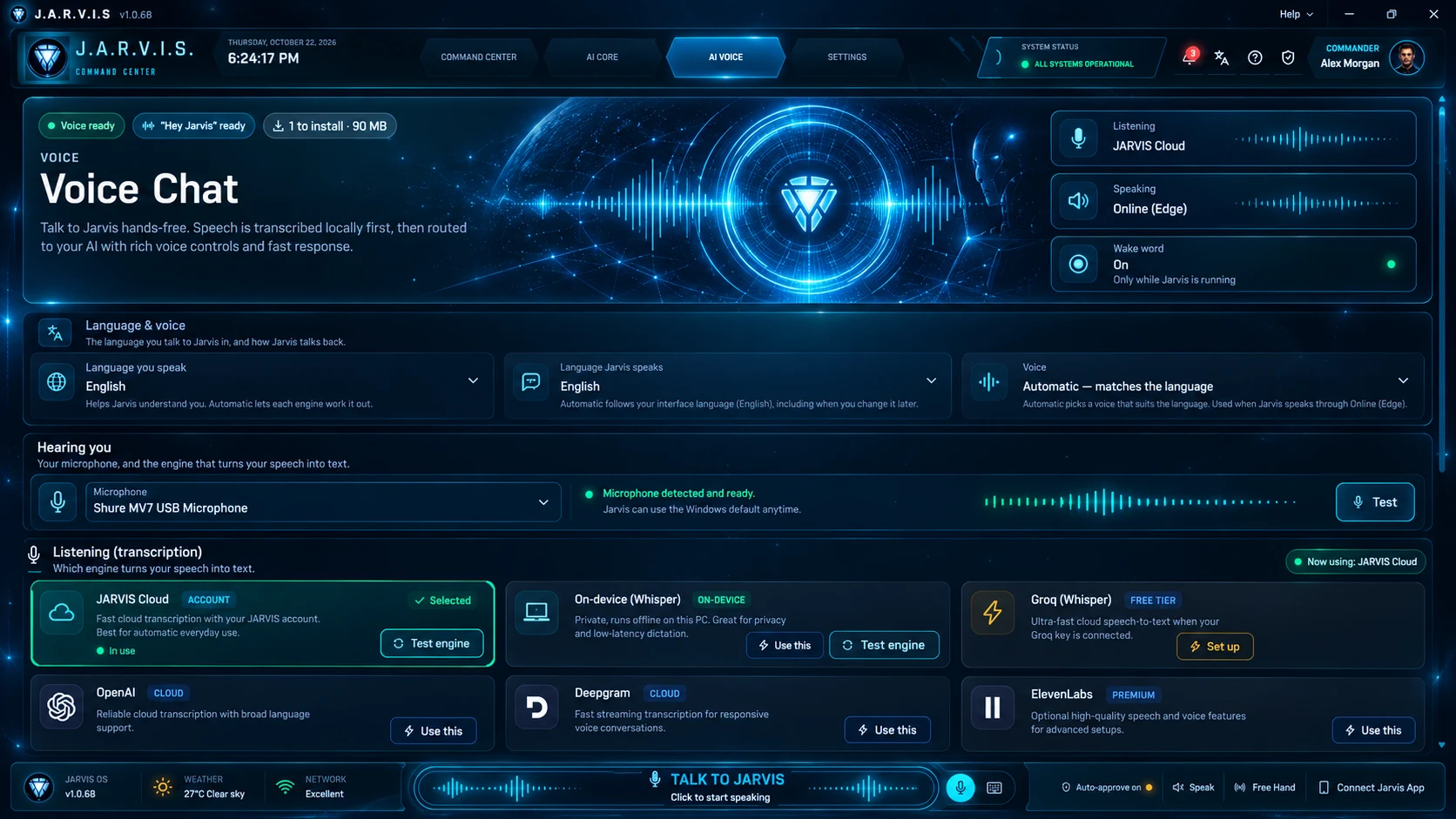
- Language & voice
- The language you speak, the language Jarvis replies in, and the voice it uses.
- Listening engine
- On-device Whisper (private, offline), JARVIS Cloud, Groq Whisper, OpenAI, Deepgram or ElevenLabs. Test each one before you pick.
- Speaking voice
- Local Kokoro (runs on your PC), Online (Edge), OpenAI or ElevenLabs.
- Wake word
- "Hey Jarvis" with adjustable sensitivity, and Tune to my voice to calibrate it.
- Microphone
- Pick your microphone and test it; a live level meter shows Jarvis can hear you.
- Talking back
- Startup greeting, a quick acknowledgement while Jarvis thinks, and the voice it speaks with.
- Voice performance
- How quickly Jarvis has been responding, so you can spot problems.
How to use it
- 1Open AI Voice from the top bar.
- 2Pick your language and microphone, and click Test to check Jarvis can hear you.
- 3Choose a listening engine. On-device Whisper works offline; cloud engines may need a key or account.
- 4Turn on Free Hand to start conversations by saying "Hey Jarvis".
10
Settings
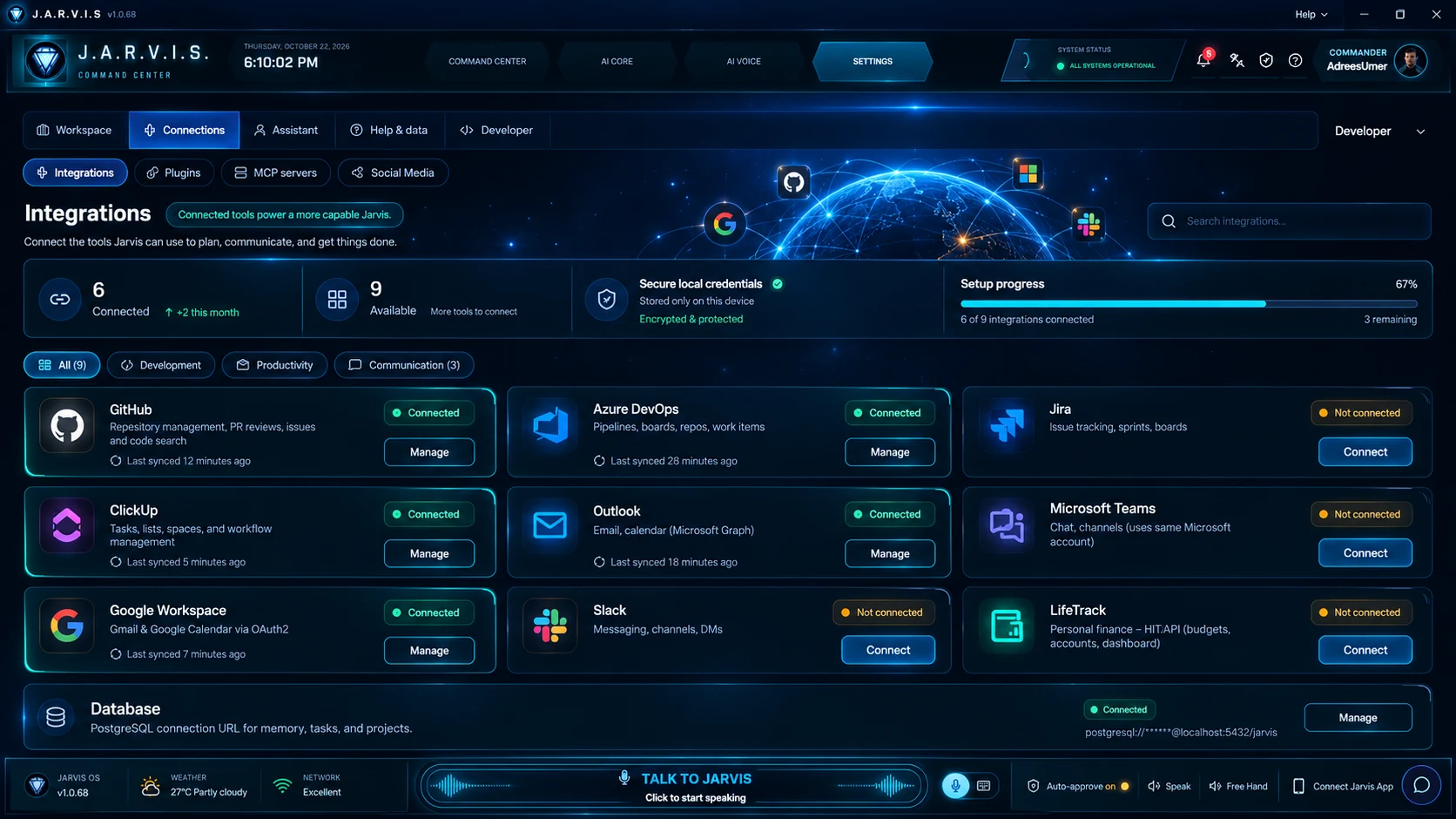
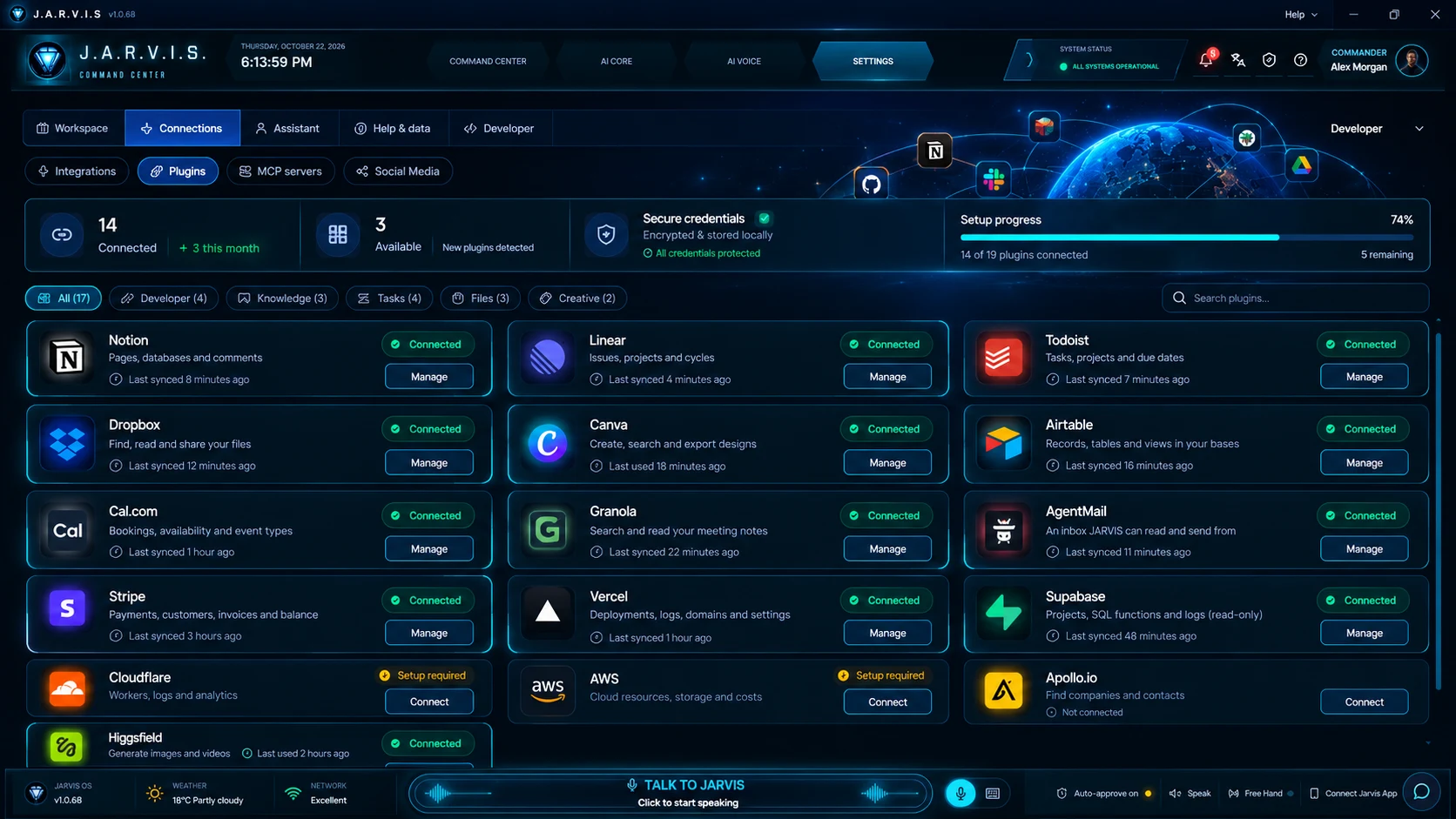
Everything else lives in Settings, grouped by what it is for. Simple mode shows the essentials; Power and Developer modes reveal more.
- Workspace
- Chat and Calendar, plus Projects and Tasks in Power mode.
- Connections
- Integrations such as email and calendar, Plugins, and in Power mode MCP servers and Social Media.
- Assistant
- Character, Assistants, Skills and Memory: what Jarvis remembers about you, and how it behaves.
- Help
- Diagnostics to check what is wrong or copy a support report, plus Activity and Backup in Power mode.
Tip: Stay in Simple mode unless you need something specific. Nothing is lost; it is only hidden.
11
Keyboard shortcuts
Press Ctrl + / (or ?) anywhere in the dashboard to see this list.
- Ctrl + K
- Jump to search.
- Ctrl + / or ?
- Show or hide the shortcuts list.
- Esc
- Close popups, dialogs and menus.
- Enter
- Send your message.
- Shift + Enter
- Start a new line without sending.
Still stuck?
Open the Help menu in the app and choose Diagnostics to check what is wrong, or contact support.