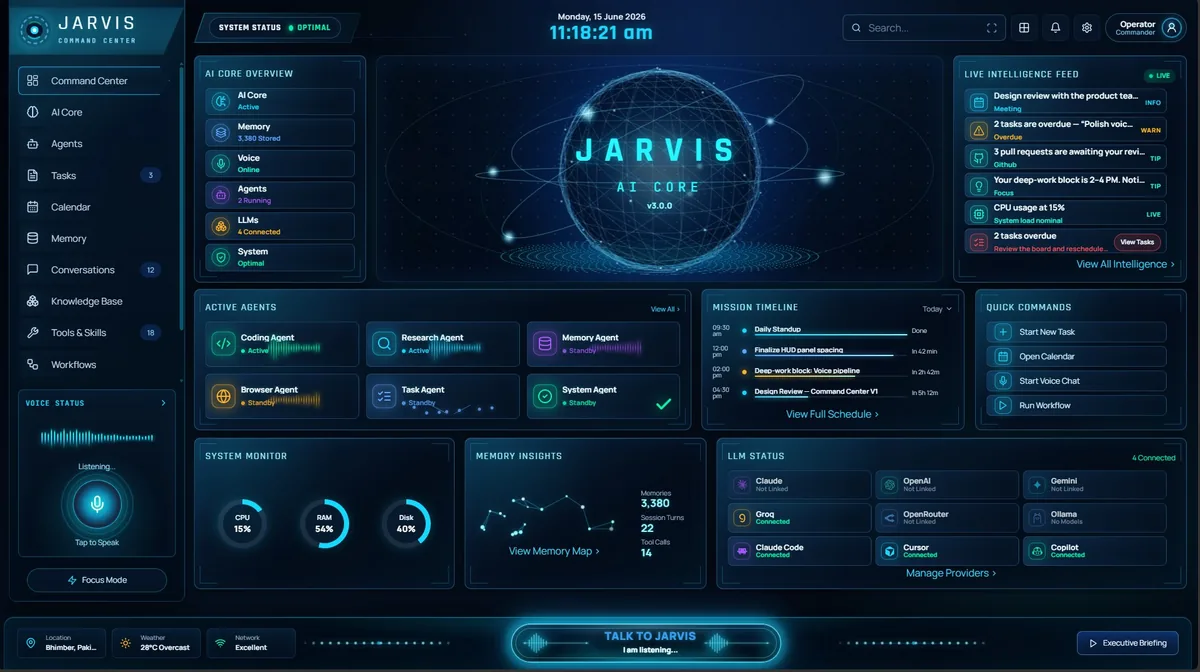
A Microsoft Copilot Alternative
That Runs Real Tools on Your PC
Copilot is built into Windows and Microsoft 365, and it is very good there. Jarvis AI Assistant is a Windows AI assistant for everything outside that world: your terminal, your repos, your containers, your inbox — with the model you choose.
Quick answer: If you want a Microsoft Copilot alternative for Windows that works offline, lets you choose the model and runs developer tools, Jarvis AI Assistant is a strong fit: it runs 70+ tools on your PC (shell, git, Docker, Jira, the browser), routes across 7+ AI providers or local Ollama models, and costs a $9.99 one-time payment instead of a subscription. Stay with Microsoft Copilot if your work lives in Word, Excel, Outlook and Teams, where its built-in integration has no equivalent in Jarvis AI Assistant.
Copilot owns the Microsoft world. The question is everything else.
Microsoft Copilot has one advantage nobody else can match: it is built into Windows and Microsoft 365. It sits on the taskbar, it understands Word, Excel, Outlook and Teams natively, and for organisations already standardised on Microsoft’s stack it is the lowest-friction AI assistant there is. At the time of writing it ships as part of Windows 11 and as paid add-ons for Microsoft 365; if your day is spent inside those apps, it is the obvious first thing to try. This page is not here to tell you it is bad.
The reason people search for a Copilot alternative is usually narrower than that. Copilot is excellent at thinking and talking inside Microsoft’s world, and the gap is doing things on your local machine outside it — the terminal, the git repository, the Docker daemon, the Jira board, the WhatsApp thread, the Gmail account. Jarvis AI Assistant is a Windows AI assistant built for that gap. It installs from the Microsoft Store as a native Windows 10 and 11 app and runs more than 70 real tools on your PC, with the model of your choice behind it.
Jarvis AI Assistant vs Microsoft Copilot vs ChatGPT.
| Feature | Jarvis AI Assistant | Microsoft Copilot | ChatGPT |
|---|---|---|---|
| Runs tools on your PC | 70+ local tools: shell, files, git, Docker, browser, Jira and messaging. | Copilot Actions, announced October 2025, can work with local files inside a restricted Agent Workspace and asks before changing them. | No access to your local shell, repos or containers; works with what you paste, upload or connect. |
| Local / offline mode | STRICT privacy mode answers with local models only (Ollama or the built-in llama.cpp engine); no prompt goes to a cloud AI provider. | No. Microsoft says Copilot Voice responses require internet access and cloud processing. | None in the ChatGPT app; conversations are processed on OpenAI’s servers. |
| Model choice | Eight providers per request: Claude, OpenAI, Gemini, Groq, OpenRouter, Ollama, llama.cpp and Claude Code. | Models chosen by Microsoft. | OpenAI models only, chosen from its own model picker. |
| Voice | Wake-word voice over the same agent and tools. | Opt-in “Hey Copilot” wake word, detected on the device. | Built-in voice mode. |
| Memory | Cross-session memory stored on your own disk (local SQLite by default). | Memory added in April 2025; you can view and delete what it stores. | Memory feature stored by OpenAI, managed in your account settings. |
| Gmail and Google Calendar | Reads and sends mail, Gmail included, over IMAP/SMTP with an app password; creates and updates Google Calendar events. | Connectors for Outlook, Gmail and Google Calendar; the October 2025 release offered search across them. | Gmail and Google Calendar connectors on paid plans, added in August 2025. |
| Pricing model | $9.99 one-time for lifetime access, plus your own API keys or free local models. | Free Copilot app; Microsoft 365 Premium is $19.99 per month and replaced Copilot Pro. | Free tier; Plus is $20 per month, with higher-priced Pro tiers. |
| Platforms | Windows 10 and 11 via the Microsoft Store; Android companion on Google Play. | Windows, web and mobile; built into Windows 11 and Microsoft 365 apps. | Web, Windows, macOS, iOS and Android. |
Copilot and ChatGPT details are at the time of writing; both change plans and features often.
It reads the log. It restarts the container. It files the ticket.
Tell Jarvis to summarise yesterday’s commits and it reads the git log. Ask which containers are unhealthy and it queries Docker. Ask it to turn the TODO comments in a directory into tickets and it opens Jira. Ask it to reply to a WhatsApp message and it sends the reply. Each call is visible and logged, and a multi-step request runs as one chain rather than a series of copy-and-paste prompts. This is the part a system-integrated chat assistant, however polished, does not do for a developer’s toolchain at the time of writing. The same agent answers by voice when you say the wake word, and it remembers decisions across sessions so you are not re-explaining your projects every morning.
Stay with Copilot when
- Your work lives in Word, Excel, Outlook, PowerPoint and Teams, and you want AI inside those documents.
- Your organisation has already licensed it and governance is handled centrally.
- You want something already present on the Windows taskbar with nothing to install.
Choose Jarvis when
- Your work lives in a terminal, a repo, a container host, a ticket board, or a chat thread.
- You want to choose the model per request — or keep it fully local.
- You want an assistant whose memory and credentials stay on your own disk, with a local log of cloud model calls.
Your choice of model, not Microsoft’s.
Copilot runs on the models Microsoft chooses for it. Jarvis routes across 7+ AI providers — Claude, OpenAI, Gemini, Groq, OpenRouter, local Ollama models, and the Claude Code command-line tool — picking per request or honouring a prefix you type. You bring your own keys and pay each provider directly, with no token markup added.
Cloud by default, or local by choice.
Copilot is a cloud service: prompts are processed on Microsoft’s infrastructure under Microsoft’s terms, with whatever data protections your licence provides, and you should read those terms for your own situation rather than rely on a summary here. Jarvis is local-first. RELAXED, the default, sends prompts to the cloud model you chose with no redaction. GUARDED mode lets you use cloud models but strips credential-like strings such as API keys, passwords and tokens before each call. STRICT mode answers with local Ollama models only, though online tools such as web search still work. Memory stays on your disk, and API keys and integration tokens are encrypted with Windows DPAPI. The security page covers each mode in depth.
Which Copilot alternative fits your situation?
A Copilot alternative that works offline, with a local LLM
Copilot is a cloud assistant. Microsoft’s own Windows Insider post says the “Hey Copilot” wake word is detected locally, but “Copilot Voice responses require internet access and cloud processing.” On-device Windows AI features are tied to Copilot+ PCs, which Microsoft Learn describes as needing an NPU capable of more than 40 trillion operations per second. Jarvis’s STRICT mode instead runs any Ollama model on the PC you already own — for example OpenAI’s open-weight gpt-oss-20b, which Ollama lists as running with as little as 16 GB of memory.
A Copilot alternative for developers
Developers usually want an assistant that acts on their toolchain, not one that only describes it. In Jarvis, one request can:
- read the git log and summarise yesterday’s commits,
- query Docker for unhealthy containers and restart one,
- run a shell command and read its output,
- turn TODO comments into Jira tickets,
- and post a status update to a chat thread — with every tool call logged.
A Copilot alternative that works with Gmail, not just Outlook
To be fair to Microsoft, Copilot on Windows is no longer Outlook-only: in October 2025 it added opt-in connectors for Gmail, Google Calendar and Google Drive, with natural-language search across them in the initial release. Jarvis goes further on the action side. It creates and updates Google Calendar events, and reads and sends mail over IMAP and SMTP with an app password you create — which works with Gmail, Outlook, iCloud or any other IMAP provider.
A Copilot alternative with no subscription
The basic Copilot app is free, but Microsoft’s paid consumer tier is now Microsoft 365 Premium at $19.99 per month, which replaced Copilot Pro in October 2025. Jarvis is a $9.99 one-time payment for lifetime access. You pay model providers directly for what you use, or nothing at all if you stay on local Ollama models.
Not another chat box.
Most assistants talk. Jarvis executes — on your hardware, across your tools, with memory that lasts.
| Capability | ChatGPT | Microsoft Copilot | Jarvis |
|---|---|---|---|
| Has a native desktop app | |||
| Executes real tools on your machine (shell, git, docker) | partial | partial | |
| Cross-session long-term memory | partial | ||
| Multi-LLM routing (7+ providers) — you pick the model | partial | ||
| Fully local / offline mode | |||
| Secret redaction before anything reaches the cloud | partial | ||
| Voice, CLI, Web & desktop — one brain | partial | partial | |
| Auditable agent core (every action logged locally) | partial | partial | |
| Bring your own API key — no markup |
Comparison reflects publicly documented capabilities at the time of writing.
Go deeper
Be clear-eyed about the Office side.
If what you need is help drafting in Word, summarising a Teams meeting, or working a spreadsheet in Excel, Copilot’s native integration with those applications is something Jarvis does not replicate. Jarvis talks to Gmail and Google Calendar, the browser, the filesystem and the shell, but it is not embedded inside Office documents. Many developers end up with Copilot for the Office side of the job and Jarvis for everything the terminal touches, and that is a perfectly reasonable place to land.
Jarvis is available as a limited-time $9.99 one-time payment for lifetime access through the Microsoft Store, with no recurring app subscription — see the pricing page. Install it from the Microsoft Store, connect a provider, pick a privacy mode, and work through the usage guide for the essential commands. An Android companion app, on Google Play, covers the times you are away from the PC. For the broader field, our round-up of the best AI assistants for the Windows desktop weighs the other options, and our ChatGPT comparison and Claude desktop comparison apply the same honest lens to OpenAI’s and Anthropic’s assistants.
Sources
- Microsoft 365 Blog: Meet Microsoft 365 Premium (1 October 2025)
- Windows Insider Blog: “Hey, Copilot!” begins rolling out (14 May 2025)
- Windows Insider Blog: Copilot on Windows connectors and document creation (9 October 2025)
- Microsoft Learn: Copilot+ PCs developer guide
- AlternativeTo: Microsoft expands Copilot on Windows with AI agent capabilities (October 2025)
- GeekWire: Microsoft gives Copilot its own memory (April 2025)
- Ollama library: gpt-oss, OpenAI’s open-weight models