Groq
FreeRecommended firstFast daily chat and first-time setup
- You need
- A free API key, no credit card
- Models
- Every chat model Groq currently serves.
- GPT-OSS 120B (default)GPT-OSS 20BGroq CompoundGroq Compound Mini
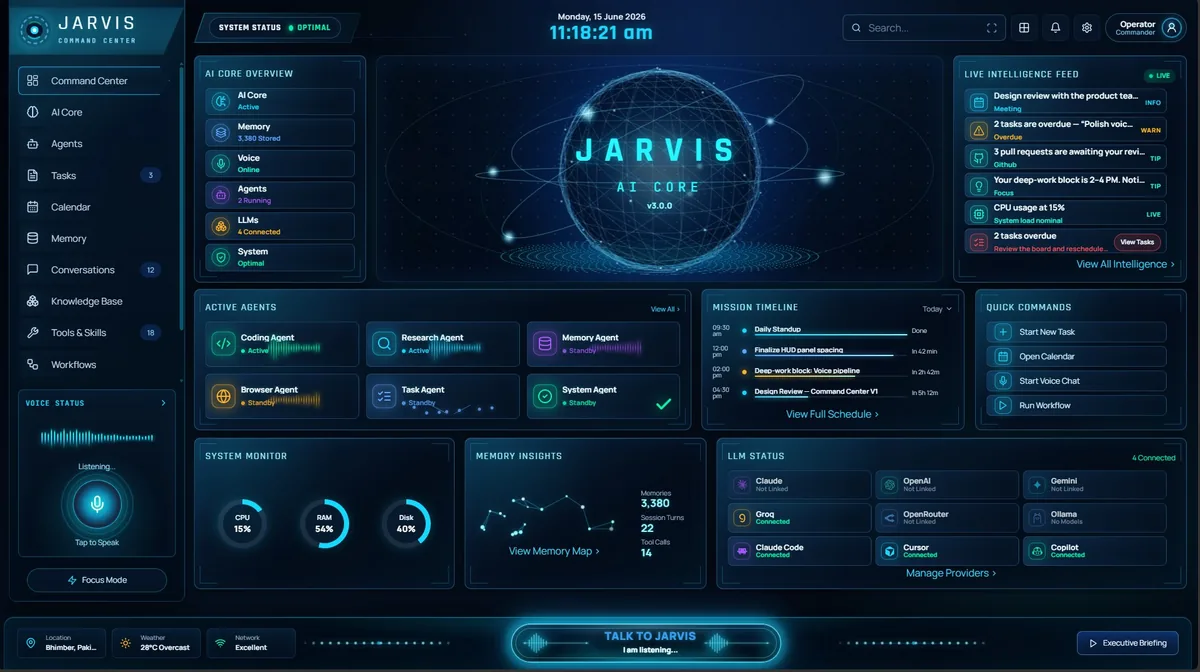
AI Core is where you connect Jarvis to an AI model: a cloud provider with your own key, a Claude plan you already have, or a model running entirely on your PC. You also choose how private every request should be.
8
AI providers
5 cloud, 1 subscription, 2 on your PC
Live
Model lists
new models appear without an app update
4
Built-in local models
for the llama.cpp engine
4
Privacy modes
from Standard to This PC only
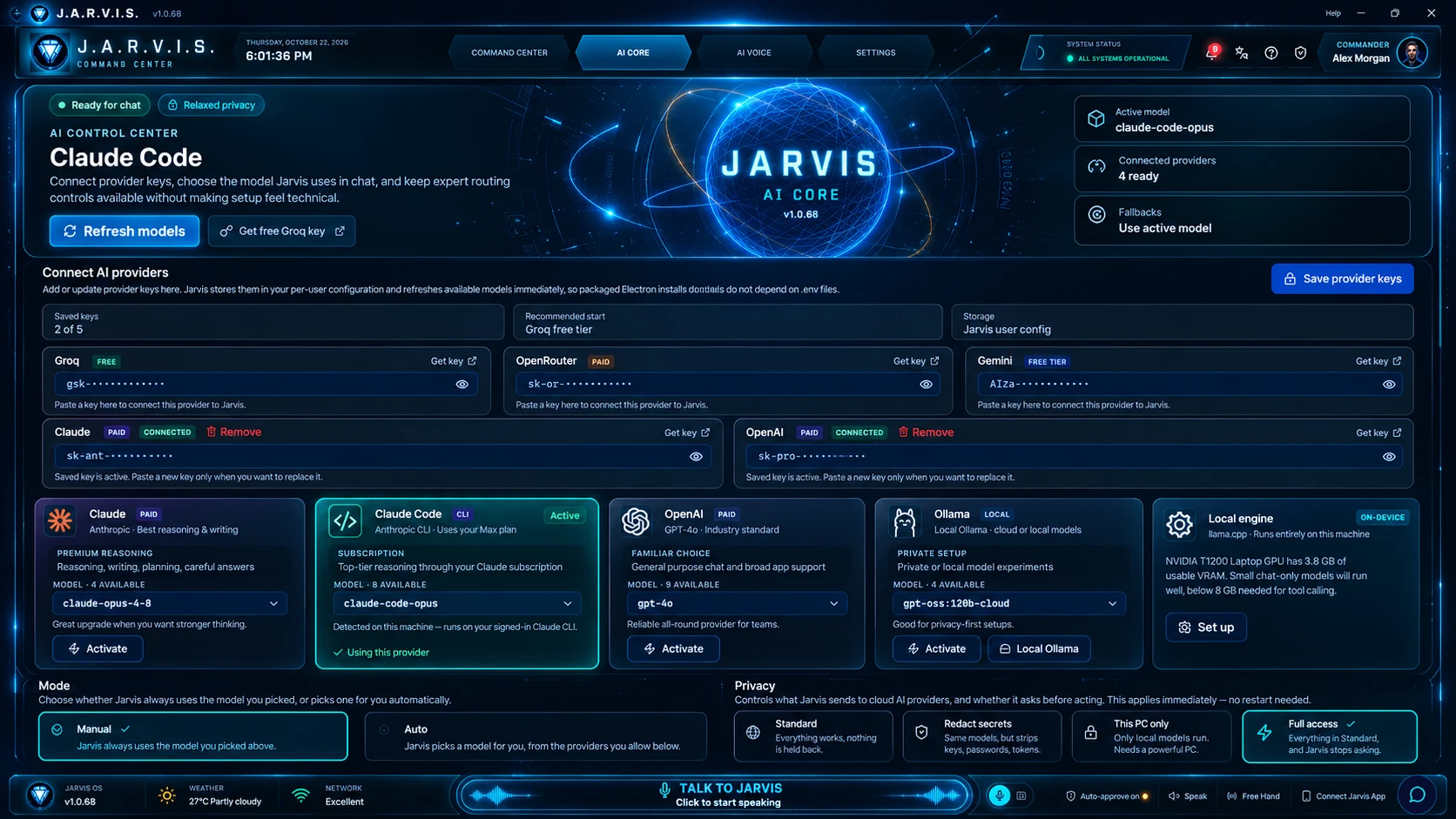
Each provider is a card in AI Core: click one to switch. Jarvis asks each provider which models it serves right now, so the list is always current and new models appear without an app update. The models below are examples.
Fast daily chat and first-time setup
Reasoning, writing, planning and careful answers
Top-tier reasoning through a Claude plan you already pay for
General-purpose chat and broad compatibility
A free-tier option and long documents
Trying many model families from one account
Private setups, or free cloud models through Ollama
Offline, fully private answers with nothing extra to install
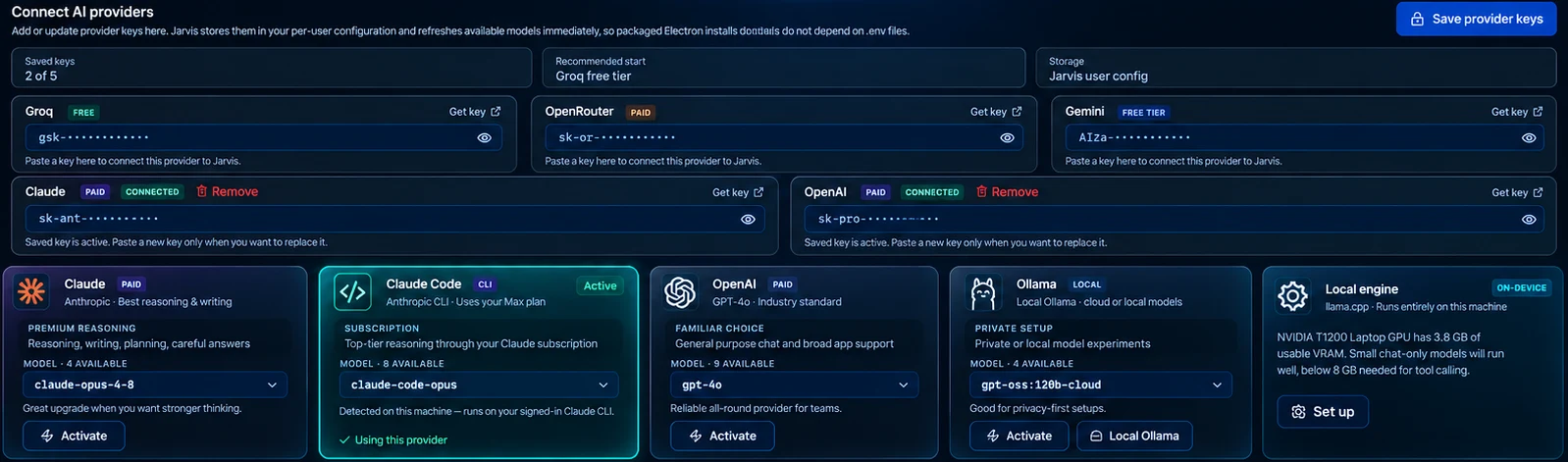
Run an AI model entirely on your PC, with nothing extra to install and nothing sent to the cloud. Jarvis offers four tested models and only shows the ones your hardware can run.
| Model | Download | Graphics card | Context | Can do |
|---|---|---|---|---|
| Qwen 3.5 2B Small and quick, but too small to use tools reliably, so it is labelled chat only. | 1.3 GB | None needed (CPU or integrated graphics) | 32K | Chat only |
| Qwen 3.5 9B The default. Fits the widest range of PCs that can use tools. | 6.0 GB | 8 GB free video memory | 32K | Chat + tools |
| Gemma 4 12B | 7.4 GB | 12 GB free video memory | 32K | Chat + tools |
| Muse Glimmer 30B The most capable. Comes with an extra usage policy, shown before you download. | 15.9 GB | 20 GB free video memory | 128K | Chat + tools |
Prefer Ollama? It works too: Jarvis suggests local models that fit your PC, labels which can use tools, and also offers Ollama's free cloud models after you sign in at ollama.com.
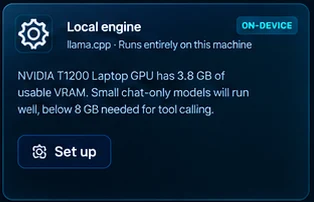
Every setting saves the moment you change it.
Jarvis always uses the model you picked.
Jarvis picks a model for you, from the providers you tick. Choose what it optimises for: Balanced, Faster or Higher quality. Ollama and Claude Code stay off unless you tick them, and Auto only picks free models until you allow paid ones.

Four modes, changed in one click and applied straight away, with no restart. Jarvis asks you to confirm before switching to a stricter or more permissive mode, and tells you exactly what changes.
Everything works. Your messages go to the AI model you picked, exactly as you wrote them.
Same models and features, but anything that looks like an API key, password or access token is stripped out before your message leaves your PC.
No prompt reaches a cloud AI model. Every cloud provider is switched off, even with a key saved, and only local models (Ollama or llama.cpp) answer. Online tools like web search still work.
Everything in Standard, and Jarvis stops asking before it acts. Every action is still recorded.
Emergency Stop, anything you set to "never allow" and the built-in blocks on dangerous commands still apply.

Most people never need to open Advanced. It is there when you want more control.
If your model fails, Jarvis retries with these, in the order you set. In Manual mode it only uses the list if you turn that on.
Point a specific job at a different model; everything else keeps your main model.
Optional rules that never turn on by themselves.
Cloud-only mode is recommended. Turn on local models and Jarvis shows how well your PC can run them, warns you first, and only offers models that fit.
Best for most people starting out
For stronger reasoning and writing
Your prompts stay on your PC
It depends on your providers. Jarvis asks each provider which models it serves right now, so the list is always current: every model your Claude, OpenAI, Gemini or Groq account can use, up to 100 from OpenRouter, any model you have in Ollama, and four tested models for the built-in llama.cpp engine.
No. Groq has a free key, Gemini has a free tier, OpenRouter and Ollama offer free models, and local models through llama.cpp or Ollama cost nothing to run. Paid providers bill you directly; Jarvis adds no markup.
Yes. Connect as many as you like and click a card to switch. Auto mode can choose between them for you, and fallback models step in if one fails.
On your PC, encrypted with Windows data protection. They are only sent to the provider they belong to.
Jarvis retries with your fallback models, in order. Set them under Advanced → Fallback models.